Deck Builder: Guide and Information
Search
The search results are the primary way to add/remove cards to your deck. The buttons under each card will adjust the number of that card in your deck accordingly. Click the highlighted button (the current number in your deck) to remove all copies of that card.
For example, say you have one Jungro in the deck below. You can click on the "2" below Jungro, it'll add 1 more Jungro to this deck. And then if you click on the green "2" again, it'll remove all of Jungro's.
| # | Name | Habitat/Type | CR | |
Monsters (1) | ||||
| 1 | Jungro | Woodlands | 3 | |
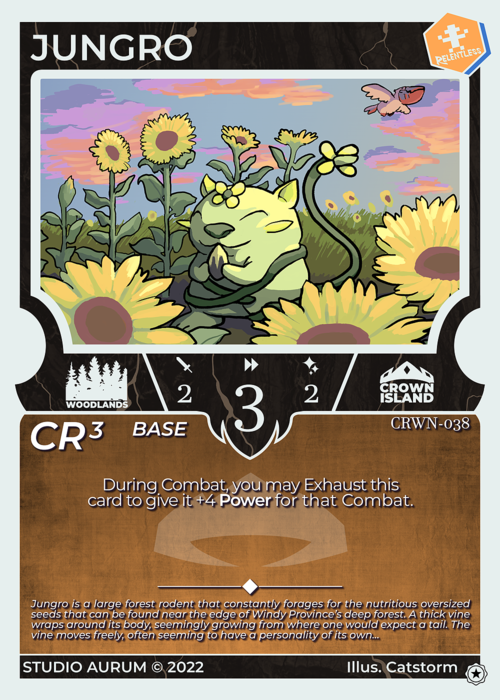
For more info on how to search for cards, see How to Search.
Sharing
You can share your deck with friends in a couple ways:
Link
Links take a snapshot of your deck so others can easily view your deck in a similar way to how you see your deck when deckbuilding. The link is only a copy of your deck as it was when you created the link, so no one will see future changes you make, and the link will continue to work even if you delete the deck.
To create a link, go to your deck and click .
Decklist
Decklists are an easy to read textual version of your deck. They can be useful for sharing or saving your decks without the help of this website. They look like:
### Jungro Reaction

## Key Choices

1x Canite

## Deck

3x Vera
3x Jungro
3x Glossum

3x Deep Woods
To share you decklist, go to your deck and click .
Tabletop Simulator
You can load your decks built on this website into Tabletop Simulator. Though, this is currently a manual process. You'll need to download a couple files and place them into one of Tabletop Simulator's directories on your computer. The files and the full instructions are on the deck page under .
Hopefully Coming Soon
There might be a custom Tabletop Simulator mod that'll make loading decks as simple as copying a link and pasting it in the game, no file management necessary.
Iconic Card
Iconic cards have a couple uses. They are used to make it easy to identify which deck is which on your Decks page and to identify your exported decks in Tabletop Simulator.
To change a deck's iconic card, either click on the image next to your deck name while editing a deck or go to . If you haven't choosen an iconic card, it'll default to the first card you added to the deck.
Privacy and Data
Your decks do not leave your browser without your permission, that includes the list of your decks, their names, iconic cards, all cards in the deck, and any other data attached to your deck. If you want others to see your deck, you'll need to share a link to your deck or copy the decklist. (See "Sharing" above.)
In the future, there may be a way to create an account to store your decks remotely and access them on other devices. In that case, you won't need an account to build decks, but if you do, you will be able to choose which decks to migrate to that account and be in control of where any of your future decks are store.
Currently, your decks are stored solely in your browser. WARNING: If you clear your browser's data, you'll lose all your decks. If you want to backup a deck, you can save the link that you'd use for sharing (see "Sharing" above). Possibly in the future, you'll be able to backup all your decks at once.